
Introduction
Welcome back to another guide from Dark Horse Virtue, your companion in the world of WordPress. We’ve covered the Dashboard, Posts, Media, Pages, Comments, Appearance, and Plugins tabs. Now, let’s explore the Users Tab, where you manage the people contributing to your website.
Understanding the WordPress Users Tab
The Users Tab is where you manage the users on your website. It’s your control center for creating user profiles, assigning roles, and managing user permissions.
All Users
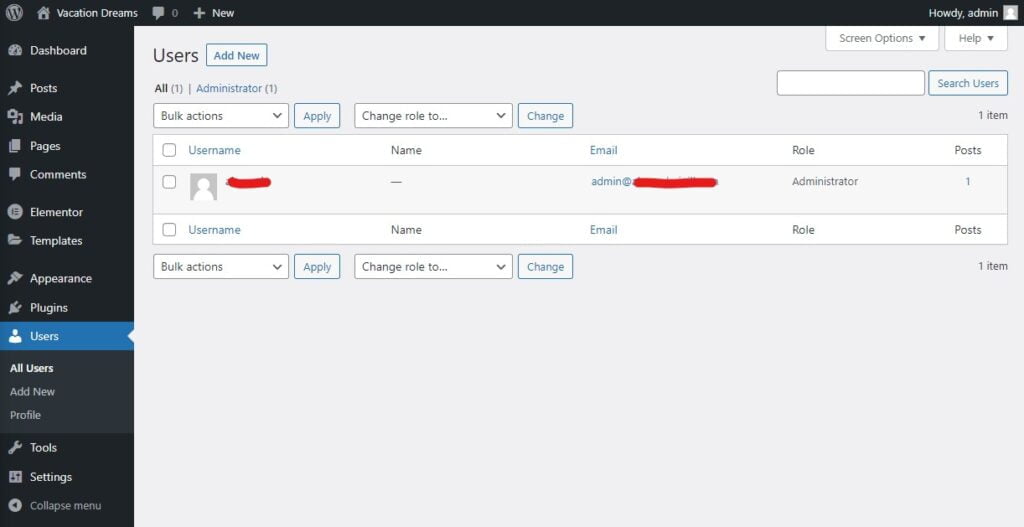
The ‘All Users’ section provides a list of all the users on your website. Here, you can add new users, change user roles, and delete users.

User Roles
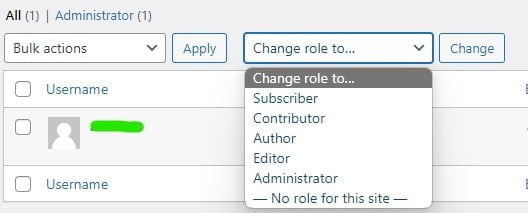
WordPress has several predefined user roles, including Administrator, Editor, Author, Contributor, and Subscriber. Each role has different capabilities, allowing you to control what users can and cannot do on your website.
Add New
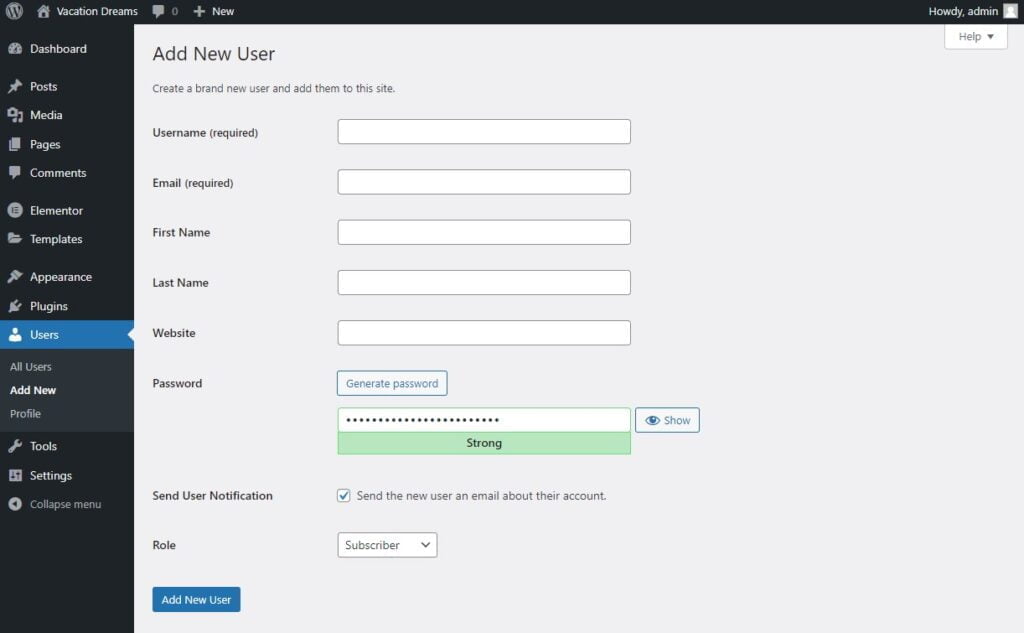
The ‘Add New’ section is where you can create new user profiles. When adding a new user, you’ll need to provide a username, email, and password. You’ll also assign a role to the new user.
Your Profile
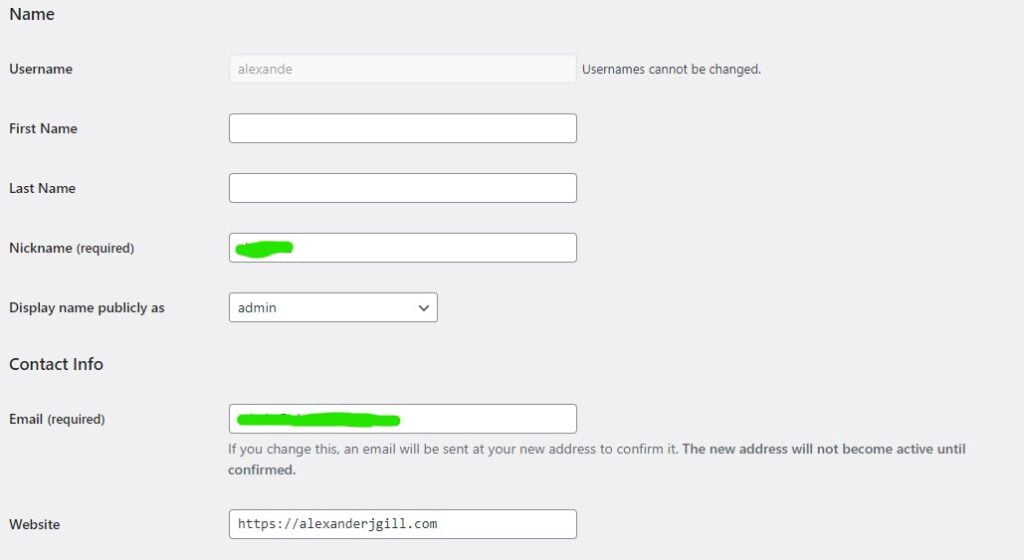
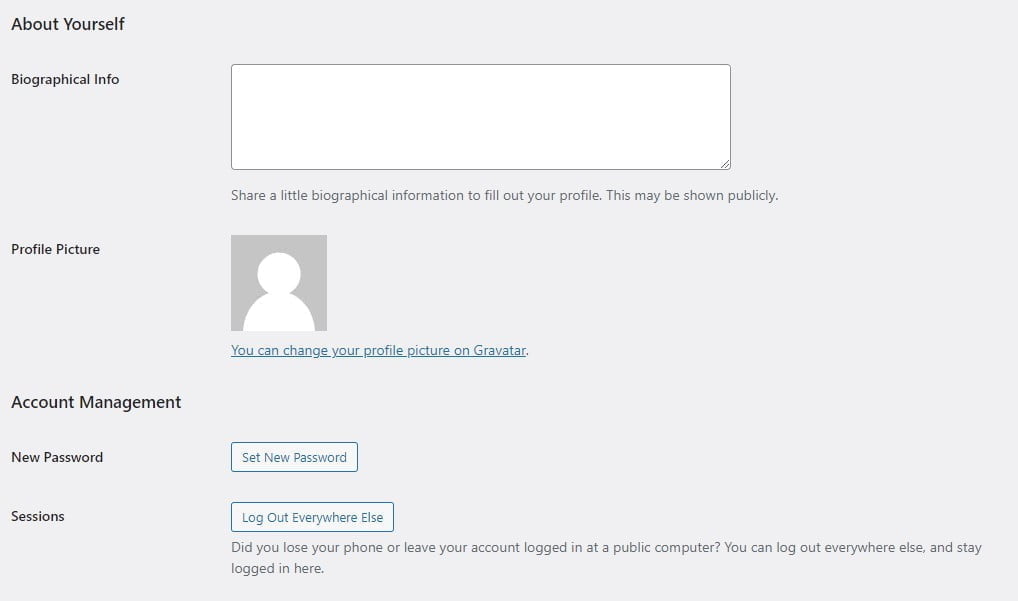
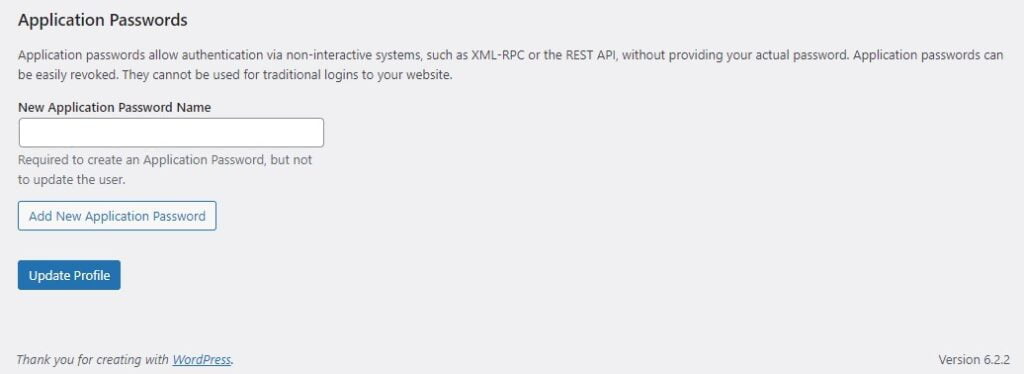
The ‘Your Profile’ section is where you can manage your own user profile. Here, you can change your password, edit your personal information, and adjust your personal settings.
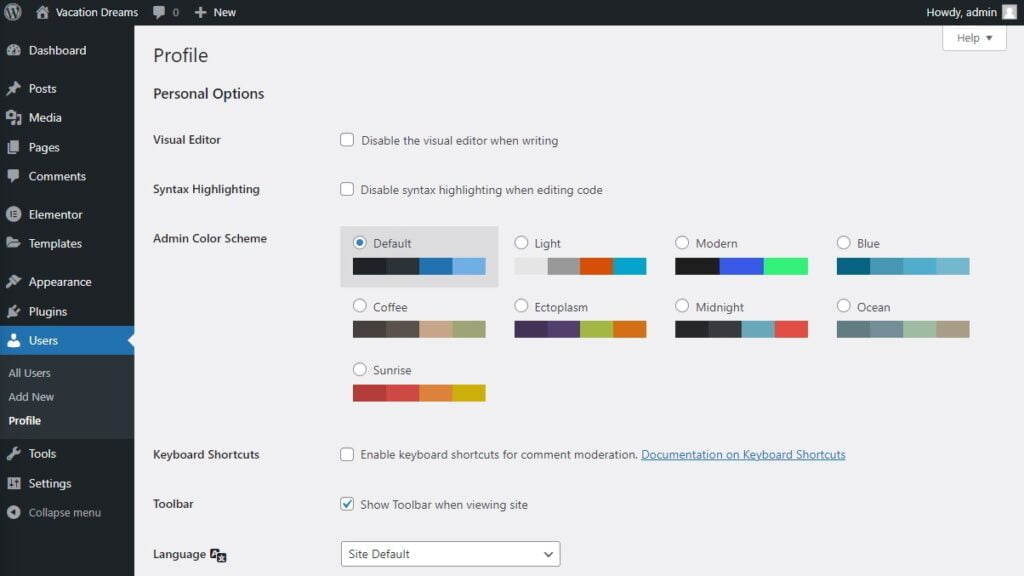
Personal Options
The ‘Personal Options’ in your profile include visual and editing settings. For example, you can choose the color scheme of your admin dashboard or enable keyboard shortcuts for comment moderation.
Conclusion
The WordPress Users Tab is a powerful tool for managing your website’s team. It allows you to control user access, ensuring that every user has the appropriate permissions for their role. With the knowledge from Dark Horse Virtue, you’re mastering the art of team management in the WordPress universe. Stay tuned for more guides as we continue our journey!