
Introduction
Welcome back to another insightful guide from Dark Horse Virtue. We’ve covered the Dashboard Tab and the Posts Tab, and now it’s time to turn our attention to the Media Tab—the home of your website’s visual and auditory content. This guide will help you understand how to manage your media files efficiently, enhancing your website’s look and feel.
Understanding the WordPress Media Tab
The Media Tab is where all your media files—images, audio, and video—are stored. It’s your digital art gallery, helping to make your website visually appealing and engaging.
Library
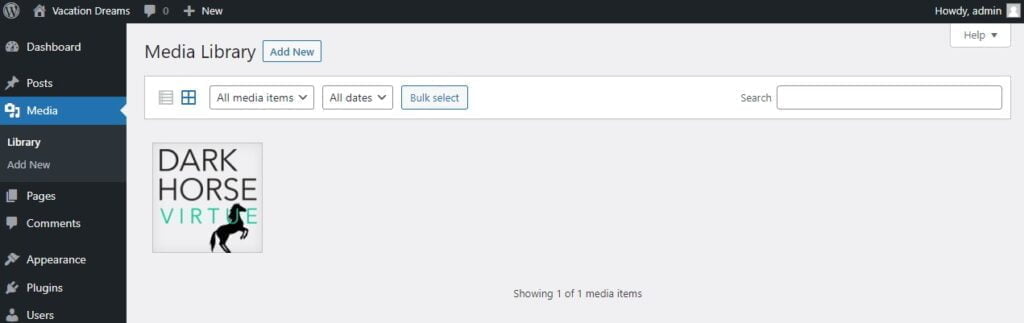
The ‘Library’ section is where you can view, edit, and delete your uploaded media files. Media files can be sorted by date, file type, or media details.
List and Grid Views
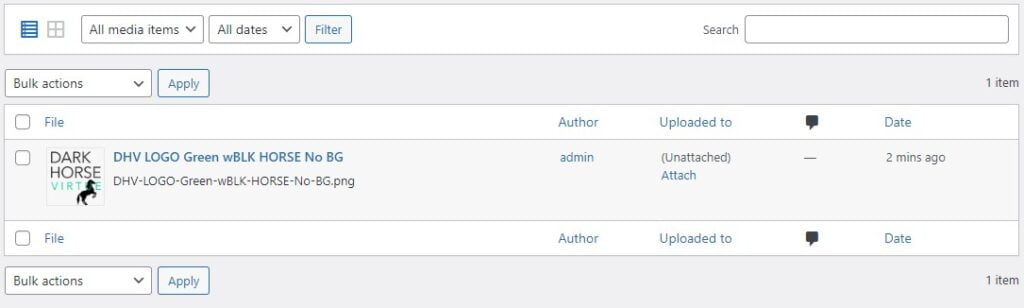
You can switch between list and grid views in the Media Library. The grid view provides a thumbnail grid of your media files, while the list view provides more detailed information about each file.
Edit Media
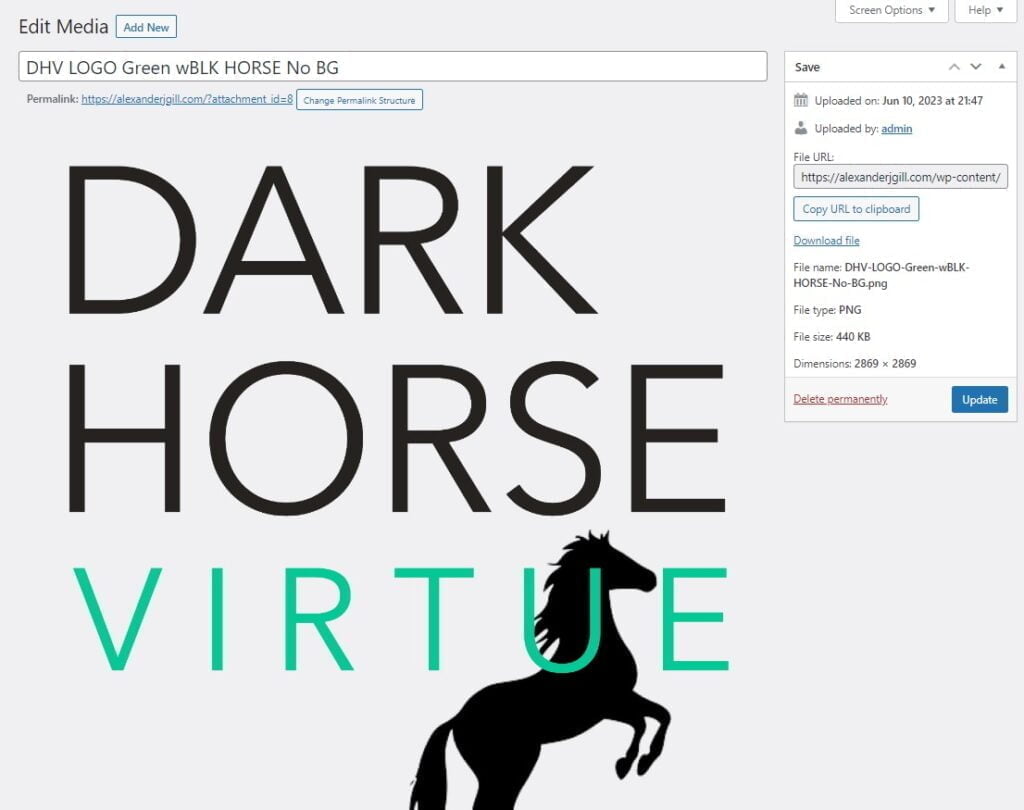
By clicking on a media file, you’ll open the ‘Edit Media’ screen. Here, you can see more details about the file and make changes. This includes editing image alt text, title, caption, and description. For images, WordPress also provides basic image editing tools like cropping, rotating, and scaling.
Add New
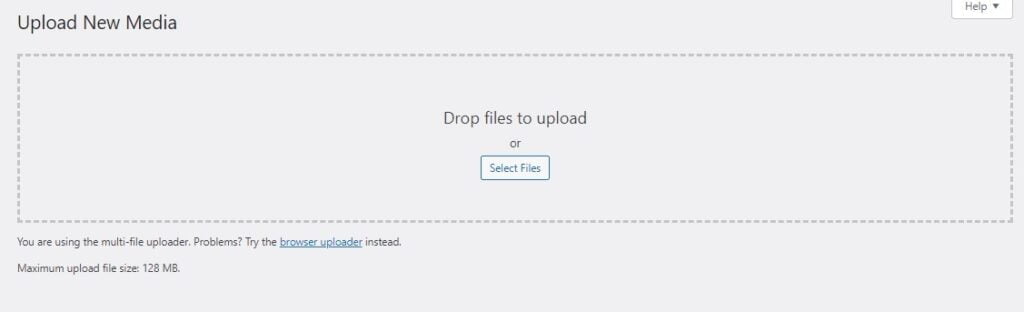
The ‘Add New’ section is where you can upload new media files. You can either drag and drop files into the uploader or select files from your computer.
File Types
WordPress supports a variety of file types. For images, these include .jpg, .jpeg, .png, and .gif. For audio, you can upload .mp3, .m4a, .ogg, and .wav files. And for video, .mp4, .m4v, .mov, .wmv, .avi, .mpg, .ogv, .3gp, and .3g2 are supported.
File Optimization
Remember, while WordPress allows you to upload large media files, it’s essential to optimize these files for web use. Large files can slow down your site, so always aim to strike a balance between file quality and file size.
Conclusion
The WordPress Media Tab is an essential tool in your WordPress toolkit. It allows you to manage your media files efficiently, ensuring that your site remains visually engaging and user-friendly. With guidance from Dark Horse Virtue, you’re becoming a proficient manager of your own digital art gallery. Join us in our next guide as we continue exploring the WordPress universe!