
Introduction
Welcome back to Dark Horse Virtue, where we continue our deep dive into the various features of WordPress. Having covered the Dashboard, Posts, and Media tabs, it’s time to explore the Pages Tab. This section is where you create and manage the static pages of your website—the building blocks of your site’s structure.
Understanding the WordPress Pages Tab
The Pages Tab is where you’ll manage your website’s static pages. Unlike posts, which are generally used for timely content like blog articles or news updates, pages are used for content that remains relatively static over time.
All Pages
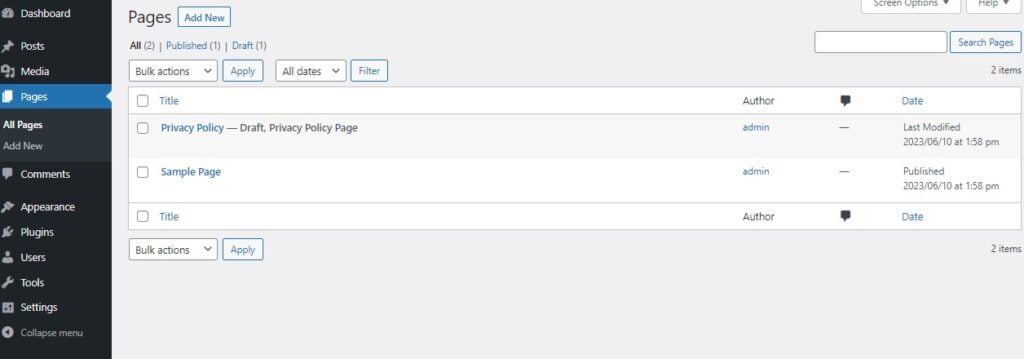
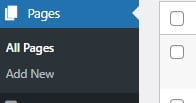
The ‘All Pages’ section provides a list of all your pages. You can sort these pages by title, author, or date. From here, you can also perform bulk actions such as moving pages to the trash or editing multiple pages at once.
Quick Edit and Edit
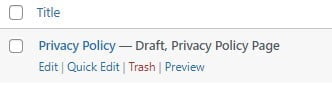
By hovering over a page title, you’ll see a few action links appear. Among these are ‘Quick Edit’ and ‘Edit.’ ‘Quick Edit’ allows you to make quick changes to a page’s title, slug, date, or status without opening the full page editor. ‘Edit,’ on the other hand, opens the full page editor, allowing you to make more comprehensive changes.
Add New
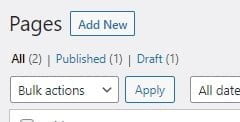
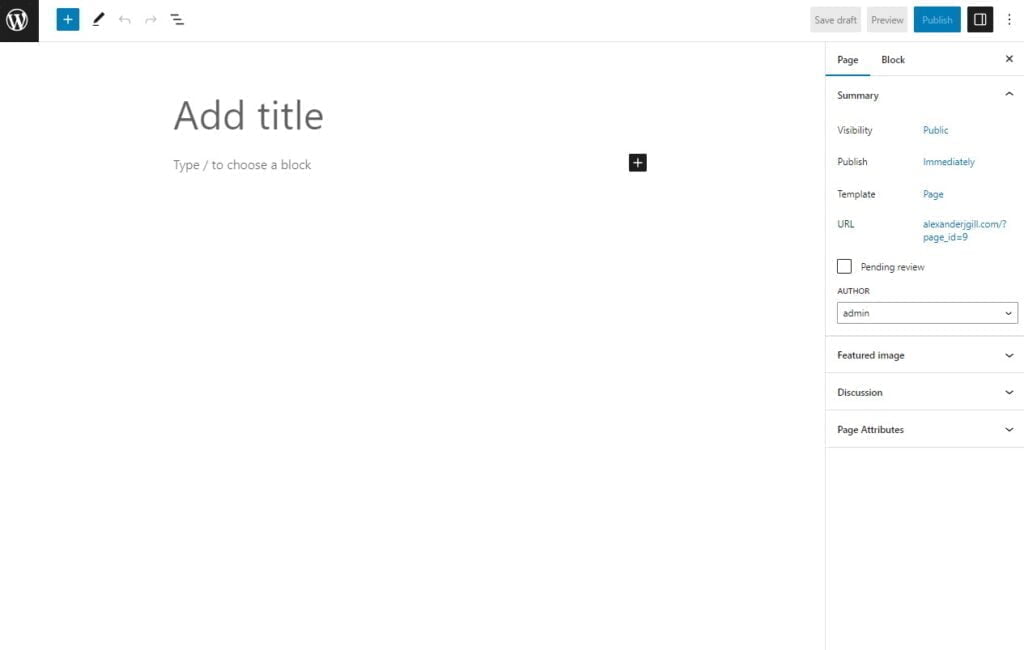
The ‘Add New’ section is where you’ll create new pages. It opens the WordPress editor, where you can add and format your page’s content, set featured images, and more.
The Editor
The editor for pages works much like the editor for posts. You can add and format text, images, videos, and more using blocks. The block editor also includes features like reusable blocks and block patterns to streamline your content creation process.
Page Attributes
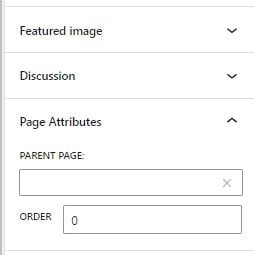
The ‘Page Attributes’ section in the page editor allows you to set a parent for the current page, making it a child page. This feature is useful for creating sub-pages under a main page. You can also set the order of pages here.
Conclusion
The WordPress Pages Tab is an essential tool for structuring your website. It allows you to create and manage static pages, which form the backbone of your site’s navigation. With Dark Horse Virtue guiding your journey, you’re becoming a master architect of your digital space. Stay tuned for more guides as we continue to navigate the WordPress universe together!