Introduction
Welcome to Dark Horse Virtue, where we empower individuals to create their unique digital presence. If you’re new to the WordPress universe, you might find the Dashboard a tad overwhelming. But with Dark Horse Virtue at your side, there’s nothing to fear! We’re here to help you navigate the WordPress Dashboard with confidence.
Embracing the WordPress Dashboard
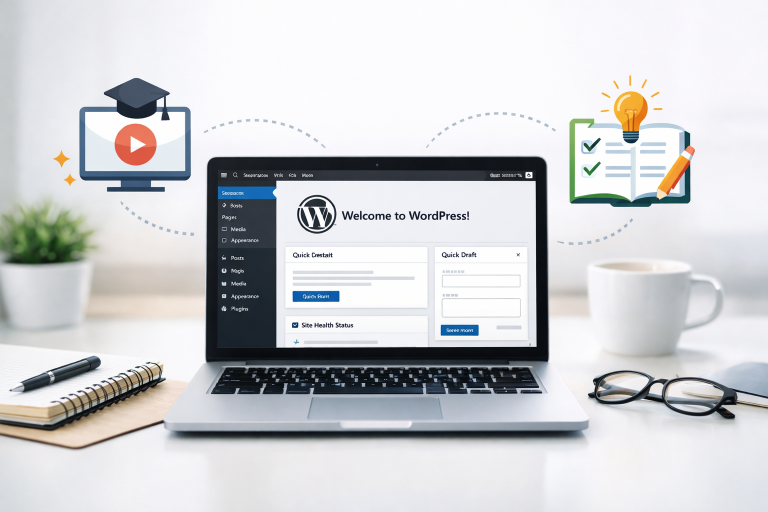
Think of the WordPress Dashboard as the command center of your spaceship, where you manage everything related to your website’s journey in the digital universe. It’s your first stop after logging into WordPress, and it’s from here that you can add new posts, pages, customize your website’s look, install plugins, and so much more.
The Home Screen: Your Mission Control
This is where you get a snapshot of your website’s current state. It shows you recent activity, comments, site health status, and other critical updates.
The Sidebar Menu: Your Navigation Center
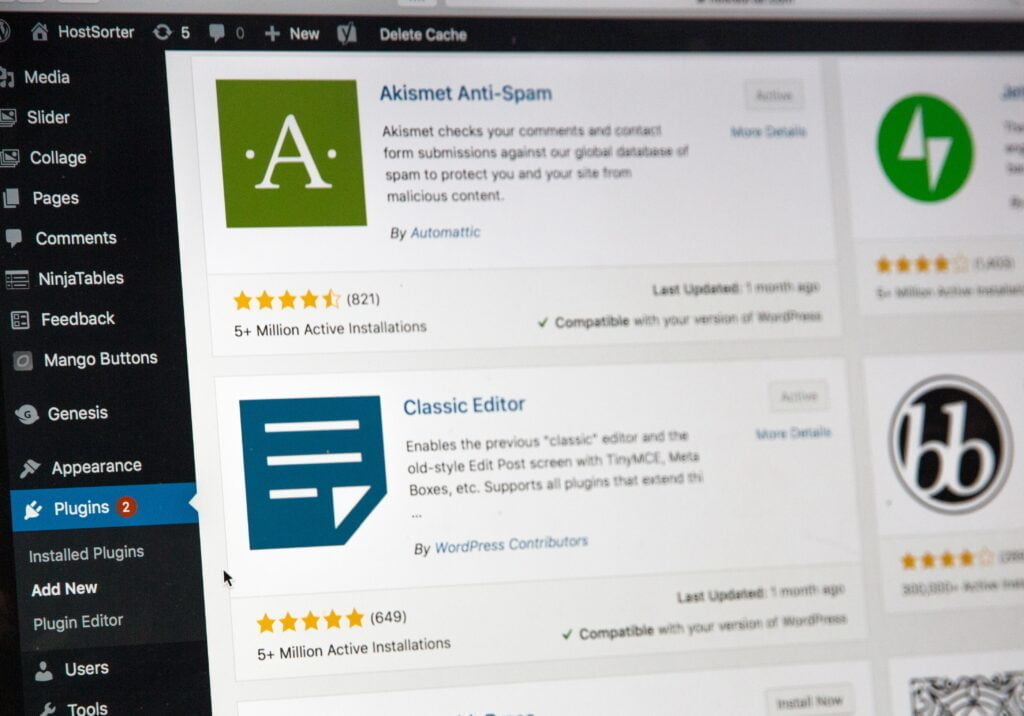
This is your roadmap to managing your website’s features. From here, you can reach all the major areas of your WordPress site.
Navigating Through the WordPress Universe
Let’s embark on a tour of the options available in the sidebar menu.

Dashboard Tab
This tab includes your home base and updates center:
- Home: This brings you back to the main dashboard screen.
- Updates: Here, you can see and install any available updates for WordPress, your themes, and plugins.
Posts Tab
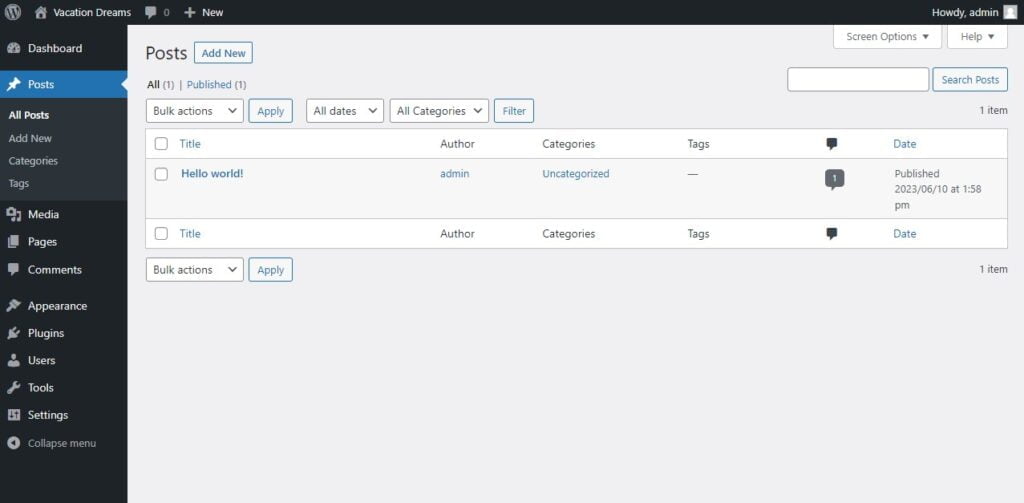
In the Posts tab, you can create new posts, view and edit existing ones, and manage categories and tags.
Media Tab
The Media tab is your media library, your digital gallery of images, audio, and video files.

Pages Tab
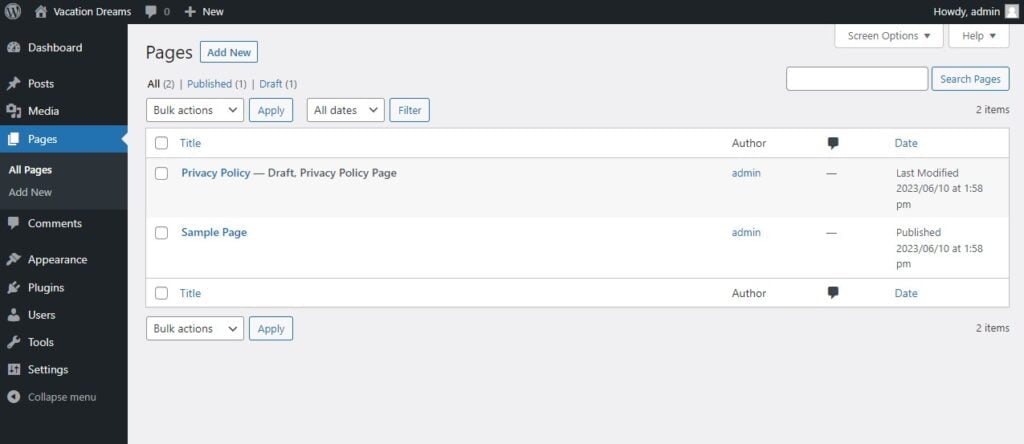
The Pages tab is where you create and manage your site’s static pages, like ‘About Us’ or ‘Contact Us.’
Comments Tab
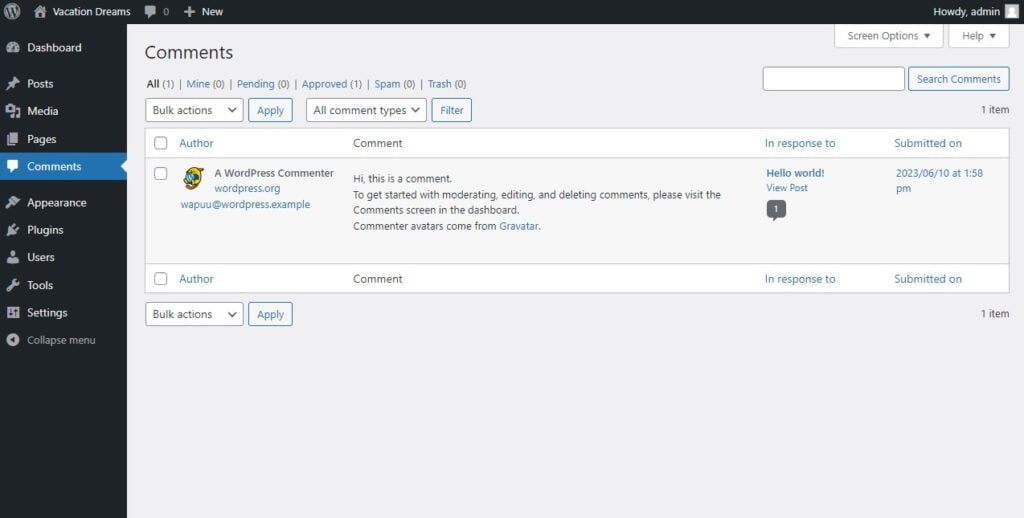
The Comments tab is your communications hub, allowing you to moderate comments on your site.
Appearance Tab
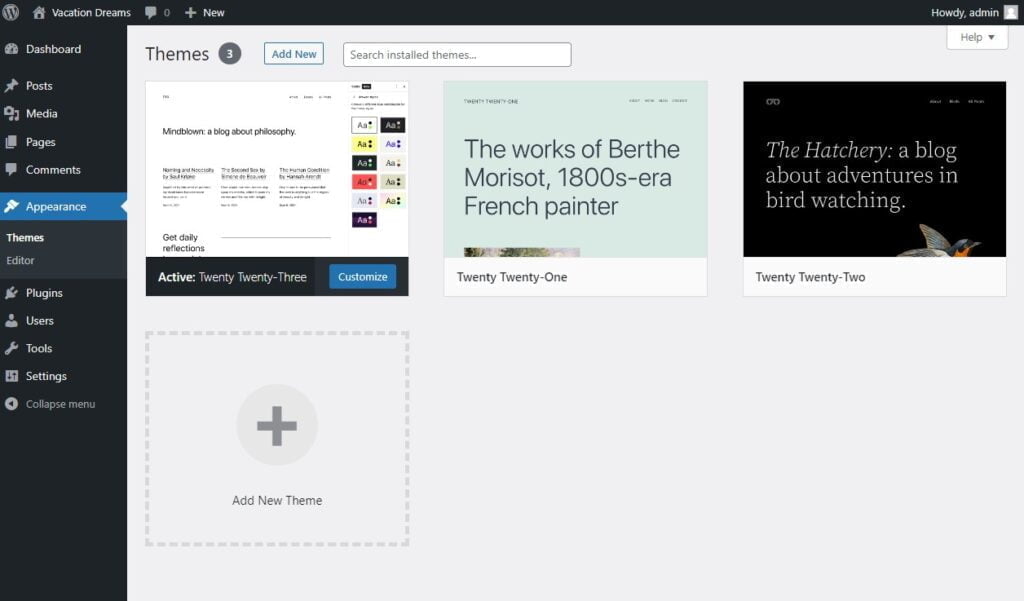
In the Appearance tab, you can customize your site’s look and feel, reflecting your unique style.
Plugins Tab
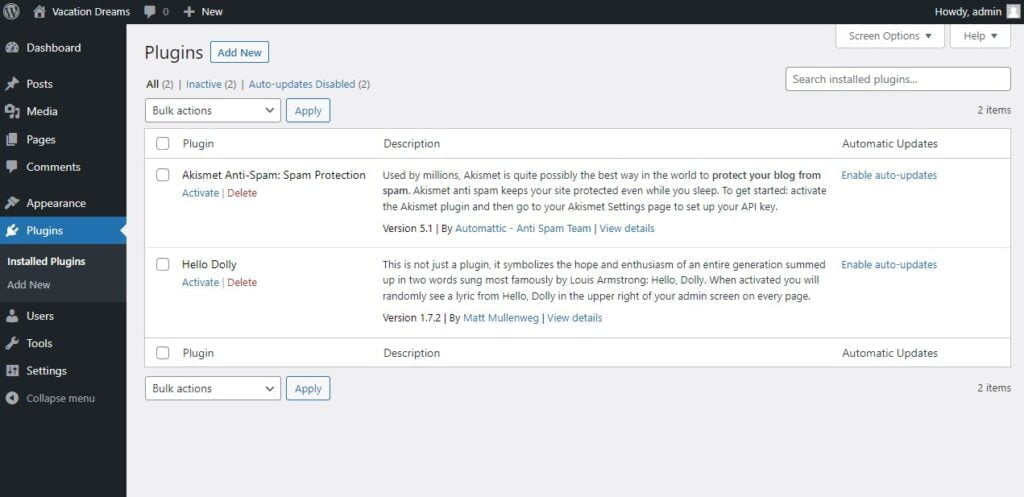
The Plugins tab is your tool chest, allowing you to add, activate, deactivate, and delete plugins.
Users Tab
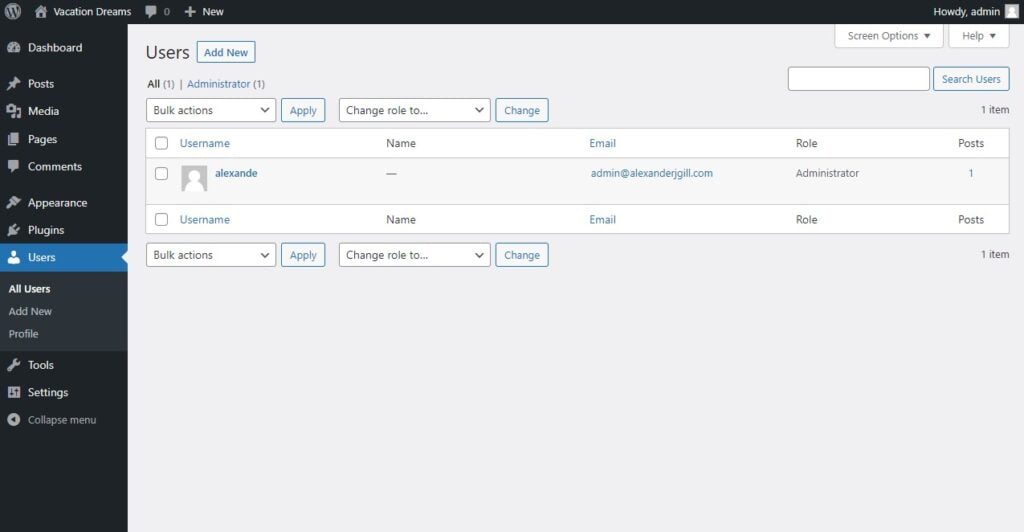
The Users tab is your crew management center, where you manage your site’s users and their roles.
Tools Tab
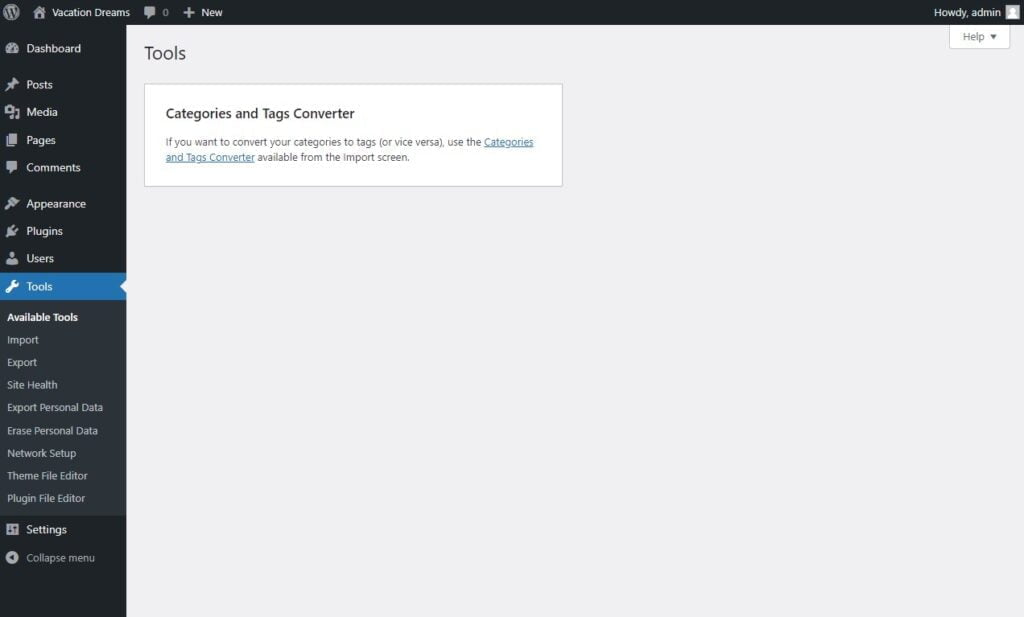
The Tools tab contains various tools to import and export data, among other tasks.
Settings Tab
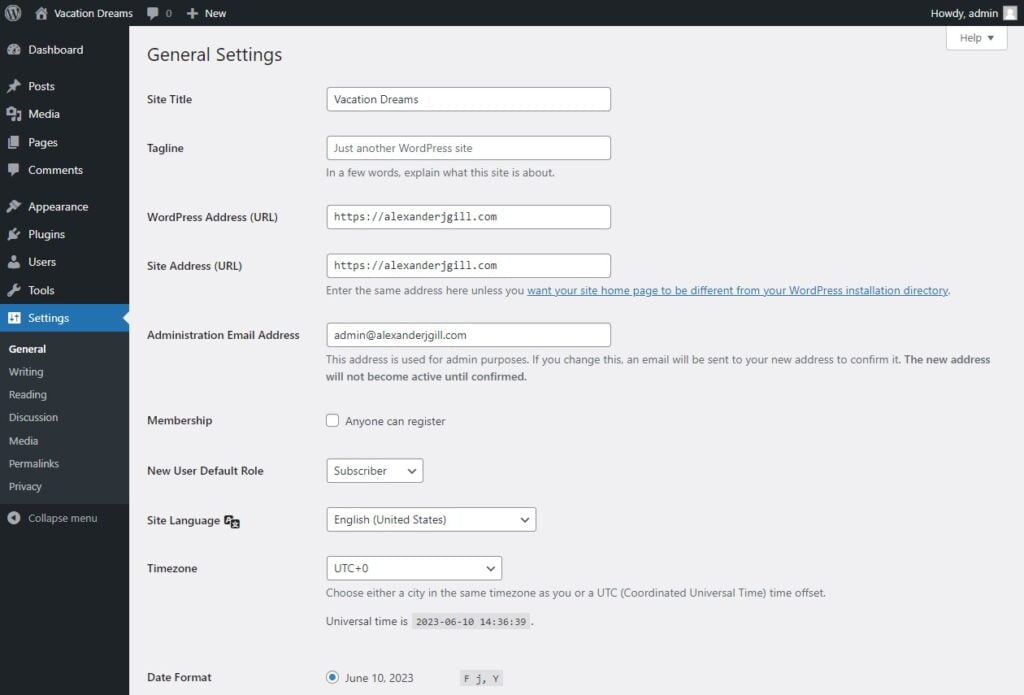
Finally, the Settings tab is where you configure your site’s basic settings, like the site title and tagline, date and time format, and reading and writing settings.
Conclusion
Understanding the WordPress Dashboard is the first step in becoming a digital trailblazer. With Dark Horse Virtue as your guide, we’re confident that you’ll master your WordPress website and carve your unique path in the digital universe. Stay tuned for more deep dives into each of these features in the future!