
Navigating through the header menu of the Dark Horse Virtue’s Digital Footprint Web Hosting client area is a simple and intuitive process. Below is a step-by-step guide to walk you through each element of the header menu.
Home
Clicking ‘Home’ will bring you back to the main dashboard of your client area from anywhere within the portal. This is the central hub where you can access and manage all aspects of your account.

Services
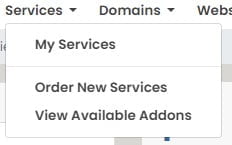
Within the ‘Services’ dropdown menu, you will find several options to help you manage your existing services and add new ones.
- My Services: This is where you can view and manage all your currently active services. Each service will have its own set of controls, allowing you to do things like adjusting settings, adding features, or managing subscriptions.
- Order New Services: Selecting this option will take you to a catalogue of all the services offered by Dark Horse Virtue’s Digital Footprint Web Hosting. Here, you can browse through the available options and order new services as per your requirements.
- View Available Addons: This menu item gives you an overview of any additional features or services that you can add to your existing hosting plans. These addons can include things like extra storage space, premium support, advanced security features, and more.
Domains
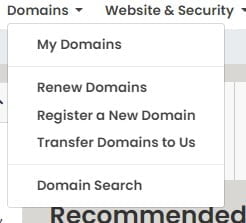
The ‘Domains’ dropdown menu provides a suite of options to manage your domains and explore new possibilities.
- My Domains: This takes you to a page where you can view and manage all your registered domains. For each domain, you’ll be able to adjust settings, renew your registration, set up forwarding, and more.
- Renew Domains: Clicking on this option will display all domains that are up for renewal. You can choose to renew your domains here to ensure continuous service.
- Register a New Domain: Select this option when you’re ready to expand your online presence by registering a new domain name. You’ll be guided through the process of checking availability and completing your purchase.
- Transfer Domains to Us: If you have domains registered elsewhere, this option guides you through the process of transferring them to your Dark Horse Virtue account, so you can manage all your domains in one place.
- Domain Search: This feature allows you to search for new domain names. If you have an idea for a new website, use this tool to check if your preferred domain name is available.
Website & Security
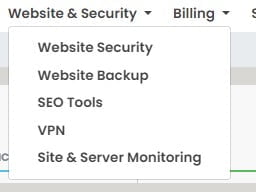
The ‘Website & Security’ dropdown menu offers an array of tools and services to ensure your website’s safety and optimize its performance.
- Website Security: Selecting this will guide you to various security solutions offered by Dark Horse Virtue. These might include malware scanning, threat detection, SSL certificates, and more to protect your site from potential cyber threats.
- Website Backup: This leads you to backup solutions to safeguard your website data. Regular backups are crucial to quickly recover your site in case of data loss or corruption.
- SEO Tools: By clicking on this option, you’ll find a suite of Search Engine Optimization (SEO) tools designed to improve your website’s visibility on search engines, thereby increasing traffic and potential customer engagement.
- VPN: Virtual Private Network (VPN) services can be accessed here. A VPN provides an encrypted connection to the internet, enhancing privacy and security, particularly when using public Wi-Fi networks.
- Site & Server Monitoring: This option provides tools to monitor your website and server’s performance. Regular monitoring helps in detecting any potential issues early, ensuring your website remains accessible and performs optimally at all times.
Billing
The ‘Billing’ dropdown menu provides a central place to handle all your financial interactions with Dark Horse Virtue.
- My Invoices: Selecting this option will lead you to a page listing all your invoices. Here, you can review past payments and track due invoices for your services.
- My Quotes: Clicking on this will show any quotes you have received for potential services. This is useful for revisiting service options or planning future expansions.
- Payment Methods: This option lets you manage your preferred payment methods. Here, you can add, edit, or remove payment methods as per your convenience.
- Add Funds: The ‘Add Funds’ feature enables you to add a balance to your Dark Horse Virtue account. These funds can be used for future services, making the payment process quicker and more efficient.

Support
The ‘Support’ dropdown menu provides a range of resources to assist you with your hosting services and troubleshoot any issues.
- Tickets: This option allows you to view your past tickets and their responses or open new support tickets. It’s the primary communication channel for your technical or account-related queries.
- Announcements: Clicking on ‘Announcements’ will direct you to a page displaying any recent updates, news, or changes made by Dark Horse Virtue. Stay informed about your services by regularly checking this section.
- Knowledgebase: Here, you can access a wealth of articles, guides, and FAQs, providing solutions to common issues and giving deeper insights into your services.
- Downloads: This section contains downloadable resources you might need, such as software, manuals, or configuration files.
- Network Status: The ‘Network Status’ page provides real-time information about the operational status of Dark Horse Virtue’s network and services. It’s a quick way to check if any ongoing issues might be affecting your services.

Open Ticket
This is a direct link to open a new support ticket without navigating through the ‘Support’ tab.

Main Dropdown Menu
This menu provides a hub to manage your account, security, contacts, and more. Here’s a breakdown of each of its options:
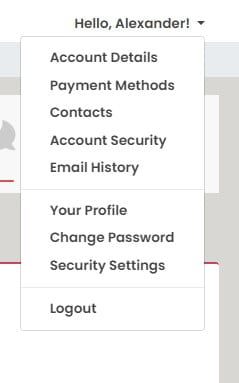
- Account Details: This leads you to a page where you can review and update your personal and contact details.
- Payment Methods: Clicking on this option takes you to a section where you can manage your preferred methods for payment.
- Contacts: This option lets you manage additional contacts associated with your account, useful for adding team members or developers who need access to the account.
- Account Security: Here, you can manage security-related settings of your account, such as two-factor authentication and security questions.
- Email History: Selecting this will display a record of all the emails sent to you by Dark Horse Virtue, helping you track important communications.
- Your Profile: Under this, you can manage aspects such as your profile picture, preferred language, timezone, and other user-specific settings.
- Change Password: This option allows you to update your account password to maintain account security.
- Security Settings: Here, you may manage additional security settings like API access, session control, and more.
- Logout: Clicking on ‘Logout’ will securely end your session, an important step to take, especially when accessing your account from a public or shared device.
Search Bar
The Search bar, typically represented by a magnifying glass icon, is a powerful tool that helps you quickly find the information you need. You can use it to search through your services, domains, invoices, tickets, and more. Simply enter a keyword or phrase related to what you’re looking for, and the system will provide you with relevant results.

Shopping Cart
The Shopping Cart, usually depicted by a cart or bag icon, is where your selected services or products are stored before final purchase. When you order new services or add ons, they’re added to the shopping cart. By clicking on the Shopping Cart icon, you can review your selected items, modify quantities, remove items, or proceed to the checkout process.
This tutorial should help you navigate through the header menu smoothly. Remember, if you face any issues, don’t hesitate to use the ‘Open Ticket’ option to reach out to the support team.