
Introduction
Welcome back to another Dark Horse Virtue guide, where we aim to empower you on your WordPress journey. We’ve explored the Dashboard, Posts, Media, and Pages tabs. Now, we’ll delve into the Comments Tab, the hub of your website’s interaction and community engagement.
Understanding the WordPress Comments Tab
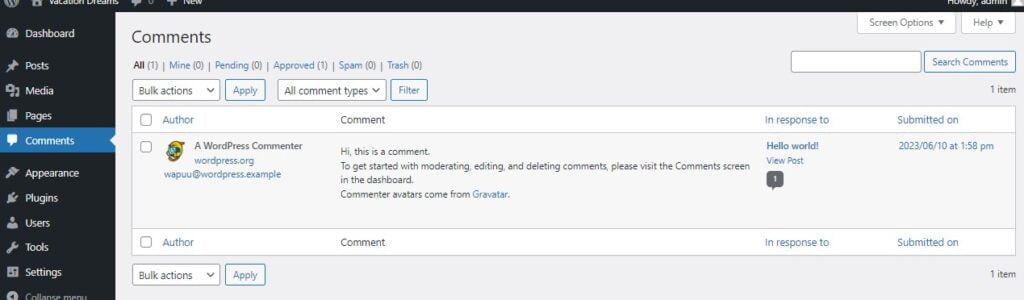
The Comments Tab is where you can view, moderate, and interact with comments left on your website’s posts and pages. It’s your main gateway to engage with your readers and foster a vibrant community.
All Comments
The ‘All Comments’ section displays all the comments left on your website. Comments can be sorted by post, author, or date. Here, you can approve, reply to, edit, spam-mark, or trash comments.
Bulk Actions
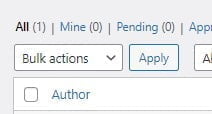
You can perform bulk actions on multiple comments at once. This can be useful if you need to approve, mark as spam, or move multiple comments to the trash simultaneously.
Quick Edit and Edit
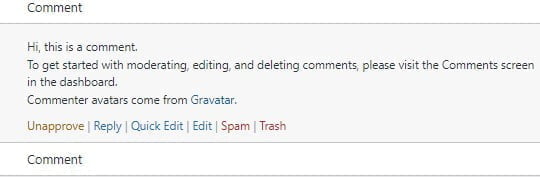
Hovering over a comment will reveal several action links. ‘Quick Edit’ allows you to make quick changes to a comment’s content without opening the full comment editor. ‘Edit,’ on the other hand, opens the full comment editor where you can make more detailed changes.
Pending, Approved, Spam, and Trash
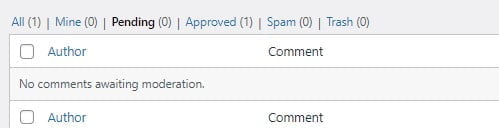
On top of the ‘All Comments’ section, you’ll find filters for ‘Pending,’ ‘Approved,’ ‘Spam,’ and ‘Trash.’ These filters allow you to view only the comments with the selected status, streamlining your comment management process.

Pending
Comments that require your approval before being published on your site are marked as ‘Pending.’ Review these comments to ensure they comply with your site’s commenting guidelines before approving them.
Approved
Comments that you or WordPress have approved are found here. These are visible on your website.

Spam
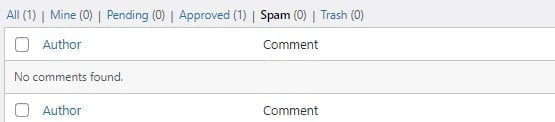
Comments that have been marked as spam, either by you or by an anti-spam plugin, are found here. Regularly review this section to ensure no legitimate comments have been mistakenly marked as spam.
Trash
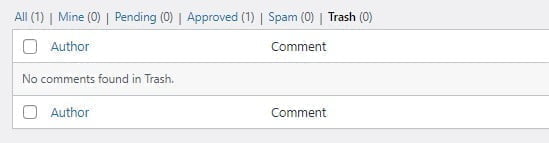
Comments that have been moved to the trash are stored here. Trashed comments are not visible on your website but can be restored if needed.
Conclusion
The WordPress Comments Tab is your hub for fostering community and interaction on your website. By effectively managing your comments, you can encourage engagement, answer queries, and maintain a positive environment for your readers. With the guidance from Dark Horse Virtue, you’re becoming a seasoned community manager. Join us in our next guide as we continue to explore the WordPress platform!