
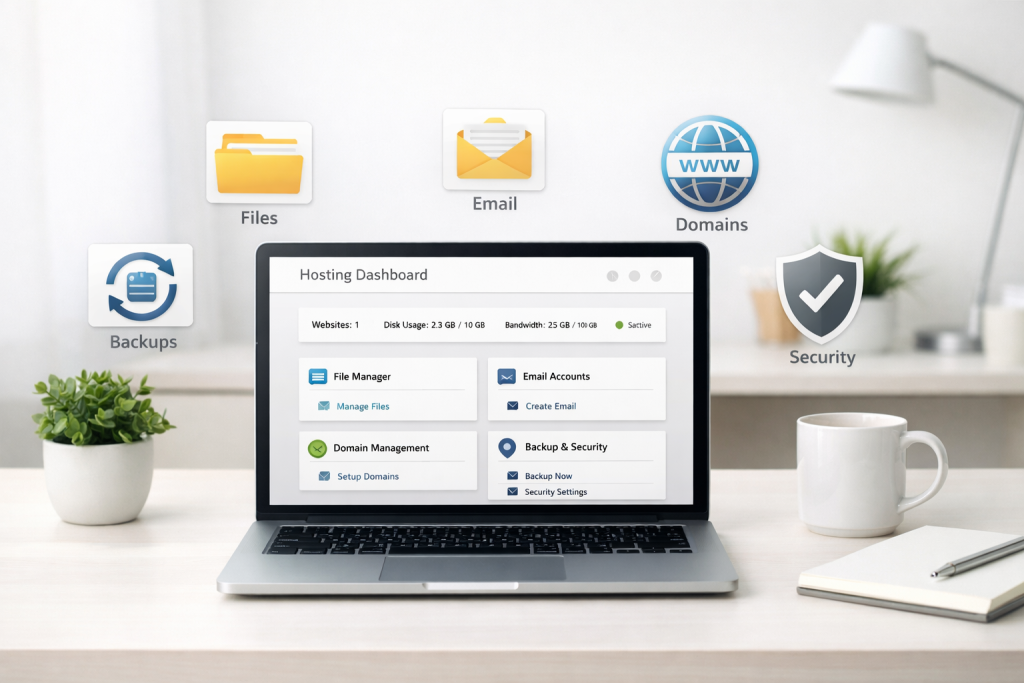
If you are new to website hosting, cPanel can feel like one of those tech terms everyone assumes you already know. In simple terms, cPanel is a web-based dashboard that helps you manage your hosting account without having to work directly with complicated server settings. It gives you a central place to handle common website tasks like uploading files, creating email addresses, managing domains, setting up databases, and checking security tools.
For small business owners, solo entrepreneurs, and anyone who wants more control over their website, cPanel can be a real time-saver. It puts the most important hosting features in one place so you can make updates, solve basic issues, and keep things running smoothly without needing to be a developer. If your goal is true ownership of your web presence, understanding cPanel is a great first step.
What Is cPanel?
cPanel is a hosting control panel. Think of it as the dashboard for your website’s “engine room.” While your website visitors only see the front end of your site, cPanel is where you manage the behind-the-scenes parts that keep your site online.
Instead of logging into different tools for different tasks, cPanel groups everything into organized sections. Depending on your hosting plan, you may use it to:
- Upload and edit website files
- Create business email accounts
- Manage databases for WordPress and other applications
- Add and control domain names and subdomains
- Back up your site and restore data when needed
- Use security features to protect your website
For many website owners, cPanel is one of the easiest ways to manage hosting because it is designed to simplify tasks that would otherwise be technical and time-consuming.
Why cPanel Matters to Website Owners
When you own a website, you are not just publishing pages online. You are also responsible for maintenance, email setup, file organization, backups, and security. cPanel matters because it gives you practical control over those everyday responsibilities.
Here is why that matters in real life:
- You can make changes faster. Need to add a new email address for your business? cPanel usually makes that easy.
- You can troubleshoot basic issues. If something breaks, cPanel often gives you access to logs, file tools, and settings that help identify the problem.
- You can manage your website independently. This reduces dependence on third parties for simple tasks.
- You can protect your data. Backups and security tools help you recover more easily if something goes wrong.
For business owners, that kind of control supports both efficiency and ownership. If your website is part of your brand, your lead generation, or your sales process, being able to manage it directly is a major advantage.
The Main cPanel Dashboard Areas Explained
cPanel can look busy at first, but most of the dashboard is organized into a handful of major categories. Once you understand the basics, it becomes much easier to navigate.
1. Files
The Files section is where you manage the actual content stored on your hosting account. This includes your website files, images, themes, plugins, and other items that make your site work.
Common tools in this area include:
- File Manager – lets you browse, upload, rename, move, and delete files from your browser
- Backup tools – help you download a copy of your website files
- FTP accounts – give you another way to upload files using a file transfer program
Practical example: If you need to upload a PDF brochure, replace a logo, or update a WordPress file during troubleshooting, the File Manager is often the quickest place to do it.
2. Email
The Email section lets you create and manage email accounts connected to your domain name, such as info@yourbusiness.com or support@yourbusiness.com.
This area often includes tools for:
- Creating new business email addresses
- Setting passwords for each mailbox
- Accessing webmail
- Setting up email forwarding
- Managing spam filters and mail routing
Practical example: A small business owner may want one email address for customer inquiries, one for invoicing, and one for personal admin tasks. cPanel makes that separation easy to set up.
3. Databases
Databases store the structured information your website uses. If you are running WordPress, your posts, pages, comments, and many settings are stored in a database.
In cPanel, database tools often include:
- MySQL Databases – create and manage databases
- phpMyAdmin – a tool for viewing and editing database content
- Database users – manage who can access each database
Most non-technical users do not need to work with databases every day, but it is helpful to know they exist. If your site needs troubleshooting, migration, or advanced updates, database access can be very useful.
Practical example: If a WordPress site is being moved to a new host, the database must usually be copied over as part of the process. cPanel often provides the tools needed to handle that migration.
4. Domains
The Domains section helps you manage the web addresses connected to your hosting account. This is where you can add new domains, create subdomains, and point domain settings to the right place.
Common domain-related tools include:
- Primary domain management
- Addon domains for hosting multiple websites on one account
- Subdomains like blog.yourbusiness.com or shop.yourbusiness.com
- Redirects to send visitors from one address to another
- DNS tools for controlling how your domain connects to services
Practical example: If you are launching a separate landing page for a campaign, you might create a subdomain or point an additional domain to a specific folder on your hosting account.
5. Backups
Backups are one of the most important parts of website ownership. If something gets deleted, hacked, or broken during an update, a backup gives you a path to restore your site.
The backups area in cPanel may allow you to:
- Download full account backups
- Back up your website files and databases separately
- Restore older versions of your site
- Keep copies of email and configuration data, depending on your host
Practical example: Before updating a plugin or changing your site design, you can save a backup first. If the update causes problems, you have a safety net.
6. Security Tools
The Security section helps protect your website and hosting account. The exact tools available depend on your hosting provider, but common security features may include:
- SSL/TLS management for secure connections
- Directory protection for restricting access to certain folders
- IP blocking to stop suspicious traffic
- Hotlink protection to prevent other sites from using your files directly
- Two-factor authentication on some hosting accounts
Practical example: If you run an online service or collect customer inquiries through forms, SSL helps protect data as it moves between your website and your visitors.
Everyday Things a Small Business Owner Might Use cPanel For
You do not need to be technical to get value from cPanel. In fact, many business owners only use a few features on a regular basis. Here are some common examples:
- Setting up a professional email address for a new employee or department
- Uploading a new PDF, image, or document to your site
- Creating a backup before making website changes
- Adding a new domain for a special promotion or brand extension
- Checking disk usage to see what is taking up space on the account
- Managing SSL so visitors see your site as secure
- Restoring a file that was accidentally removed
These are the kinds of tasks that give you practical control without requiring you to become a web developer. That is one of the biggest reasons cPanel remains so popular.
What cPanel Does Not Do
It is also helpful to understand what cPanel is not. cPanel is not your website itself, and it is not usually the place where you design pages or write blog content. Instead, it is the management layer behind your website.
If you are using WordPress, for example, you would typically use WordPress to write posts and design pages, while cPanel helps you manage the hosting environment that WordPress lives in.
In other words:
- WordPress helps you build and publish content
- cPanel helps you manage the hosting account that supports the site
How cPanel Supports Better Website Ownership
At Dark Horse Virtue, the idea of true ownership matters. A good hosting setup should not leave you feeling locked out of your own web property. cPanel supports that ownership mindset by giving you direct access to the most important parts of your site’s infrastructure.
That means you can:
- Keep control of your files and backups
- Manage your own business email
- Maintain your domain settings
- Respond faster when something needs attention
- Make informed decisions about your hosting environment
When your hosting tools are easy to understand, you are less dependent on guesswork and more able to make confident decisions for your business.
What If Your Host Uses a Custom Control Panel?
Not every hosting provider uses cPanel. Some offer their own custom control panel instead. This is not necessarily a problem, but it does mean the layout, labels, and tools may look different.
If your host uses a custom dashboard, here is what to do:
- Look for the same core functions. You still need access to files, email, domains, backups, databases, and security.
- Review the provider’s help center. Custom dashboards often have tutorials or walkthroughs.
- Ask support where key tools are located. A quick support chat can save a lot of time.
- Check whether the panel is intuitive for you. A custom system is fine if it helps you work efficiently.
If you are comparing hosting providers, do not focus only on whether they use cPanel. Ask whether the control panel gives you clear, reliable access to the tools you actually need.
Key Takeaways
- cPanel is a hosting control panel that helps you manage your website without dealing with server-level complexity.
- The main areas to know are Files, Email, Databases, Domains, Backups, and Security.
- Small business owners use cPanel for practical tasks like creating email accounts, uploading files, and restoring backups.
- It supports website ownership by giving you more direct control over your hosting environment.
- Even if your host uses a custom panel, the same core tools should still be available in some form.
Frequently Asked Questions
Is cPanel only for WordPress websites?
No. cPanel can be used for many types of websites and applications. WordPress is one common use case, but not the only one.
Do I need to know coding to use cPanel?
Usually, no. Many everyday tasks in cPanel can be handled through buttons, menus, and forms. Some advanced actions may require technical knowledge, but the basics are beginner-friendly.
Is cPanel the same as my website builder?
No. A website builder helps you create pages and content. cPanel helps you manage the hosting account that stores and serves your website.
Can I use cPanel to create business email?
Yes. One of the most common uses for cPanel is creating professional email addresses tied to your domain name.
What should I do if I cannot find something in cPanel?
Start with the search bar if your dashboard has one. If not, check your hosting provider’s help documentation or contact support. Some hosts arrange tools differently, even when they use cPanel.
Final Thoughts
cPanel is not something you need to master all at once. The key is to understand the basics so you can confidently manage your hosting account when needed. For many website owners, it becomes the place where simple but important tasks get done quickly and securely.
If you want more control over your website, more clarity around hosting, and fewer surprises when something needs attention, learning cPanel is a smart move. It is one of the most practical tools available for taking real ownership of your online presence.
Ready to Take Control of Your Website?
If you want a hosting setup that supports real ownership, reliable performance, and straightforward management, Dark Horse Virtue can help you get there. Explore hosting solutions, WordPress support, and practical guidance built for small business owners who want clarity, control, and confidence online.