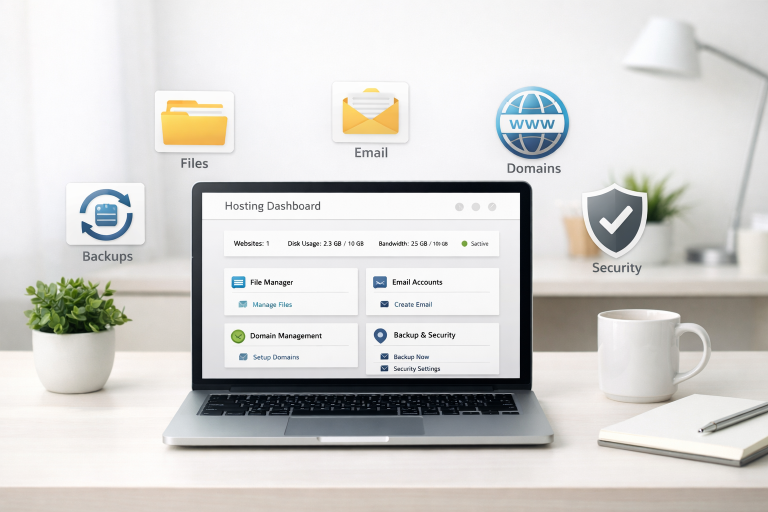

No FTP? No problem—your website files are just a few clicks away.
When FTP Felt Like Too Much
Jake had just launched his first WordPress site. Excited to tweak his theme files, he fired up an FTP client—only to be hit with connection errors, firewall blocks, and confusing file paths. Frustrated, he turned to cPanel, the hosting dashboard he had ignored in favor of third-party tools. That’s when he found the File Manager. Within minutes, Jake was editing theme files, uploading images, and organizing folders—all from his browser.
If you’re like Jake, the cPanel File Manager can simplify your file management process. Whether you’re editing website code, uploading content, or fixing broken links, File Manager does it without the hassle of FTP software.
The Control Center: Accessing File Manager
The cPanel File Manager is a browser-based tool included with most hosting plans. It allows you to access and manipulate your website files directly on your server.
How to Access It:
1. Log in to your cPanel account.
2. Locate the “Files” section.
3. Click on “File Manager.”
By default, File Manager opens in the home directory. If you’re managing a website, navigate to the public_html folder—this is your website’s root directory.
Uploading Files Made Easy
Uploading files via File Manager is as simple as dragging and dropping. You can upload HTML files, CSS stylesheets, images, and even zipped folders.
Steps to Upload:
1. Open the public_html folder or your desired directory.
2. Click the “Upload” button in the top menu.
3. Choose files from your local device.
4. Wait for the upload bar to show 100%, then return to File Manager.
Tip: To upload multiple files, compress them into a `.zip` file and upload that. Use the “Extract” function inside File Manager to unpack the contents.
Editing Files Directly
Need to tweak some code or correct a typo in a webpage? File Manager has built-in text and code editors.
File Editing Options:
- Edit: Opens a plain text editor for general text or config files.
- Code Edit: Opens a syntax-highlighting editor for HTML, PHP, JS, and CSS files.
- HTML Editor: A WYSIWYG (What You See Is What You Get) editor for HTML files.
How to Use:
1. Right-click the file you want to edit.
2. Select “Edit” or “Code Edit.”
3. Make your changes and click “Save.”
Caution: Always back up files before editing live code to avoid breaking your site.
Organizing Your Files Like a Pro
Managing dozens of files? File Manager helps you stay organized with familiar folder operations.
Key Features:
- Create Folders: Use the “+ Folder” button to structure your files.
- Move Files: Select files and use the “Move” option to relocate them.
- Rename Files: Right-click and choose “Rename” for cleaner URLs or better organization.
- Delete or Restore: Delete files and send them to the Trash folder, with an option to restore.
File Manager makes it easy to maintain a well-organized directory, which is crucial for SEO and site performance.
Compress, Extract, and Save Space
Hosting space is limited. Use File Manager’s compression tools to zip files and save space, or to prepare for downloads and backups.
Popular Uses:
- Compress logs or old backups
- Archive outdated site versions
- Prepare folders for transfer or download
To Compress:
1. Select the files or folders.
2. Click “Compress” in the top menu.
3. Choose your preferred format: ZIP, GZIP, or TAR.
4. Click “Compress File(s)” and download if needed.
No FTP? No Problem
File Manager is ideal for users who:
- Don’t want to install FTP software
- Need quick access to website files on public computers
- Prefer an all-in-one hosting dashboard
It’s particularly useful for beginners who are still getting comfortable with website maintenance and want a visual, intuitive tool.
Security Tips When Using File Manager
- Always log out of cPanel after use.
- Avoid editing core files unless necessary.
- Use strong file permissions (usually 644 for files, 755 for folders).
- Back up your site before making changes.
Further Reading & Resources
Learn all the official features, shortcuts, and best practices directly from cPanel.
A clear guide on setting proper file permissions to keep your site secure.
Understand how web files are structured and what each folder is used for.
Using cPanel File Manager can transform how you manage your website—no extra software, no technical headaches. Whether you’re maintaining a blog or running an eCommerce store, mastering this tool is a step toward full control over your online presence.