What is WordPress?
WordPress is an open-source content management system (CMS) that allows users to create and manage websites easily. It’s known for its flexibility, extensive plugin ecosystem, and user-friendly interface. With WordPress, users can build anything from a simple personal blog to a full-fledged e-commerce site.
Advantages of Using WordPress:
- Ease of Use: WordPress is known for its intuitive and user-friendly dashboard.
- Extensibility: With thousands of plugins and themes available, it’s easy to customize and extend the functionality of a WordPress site.
- SEO-Friendly: WordPress has built-in SEO features and many SEO plugins to help rank your website higher in search results.
- Active Community: A large community of developers and users means extensive support and resources are available.
Installing WordPress Using Softaculous on Dark Horse Virtue Digital Footprint Hosting:
Step 1: Access Softaculous from Your Hosting Account
- Log in to your Dark Horse Virtue Digital Footprint Hosting account.
- Navigate to the “Software” section or find the direct link to ‘Softaculous Apps Installer‘ in cPanel.
- Click on the Softaculous icon.
Step 2: Locate WordPress in Softaculous
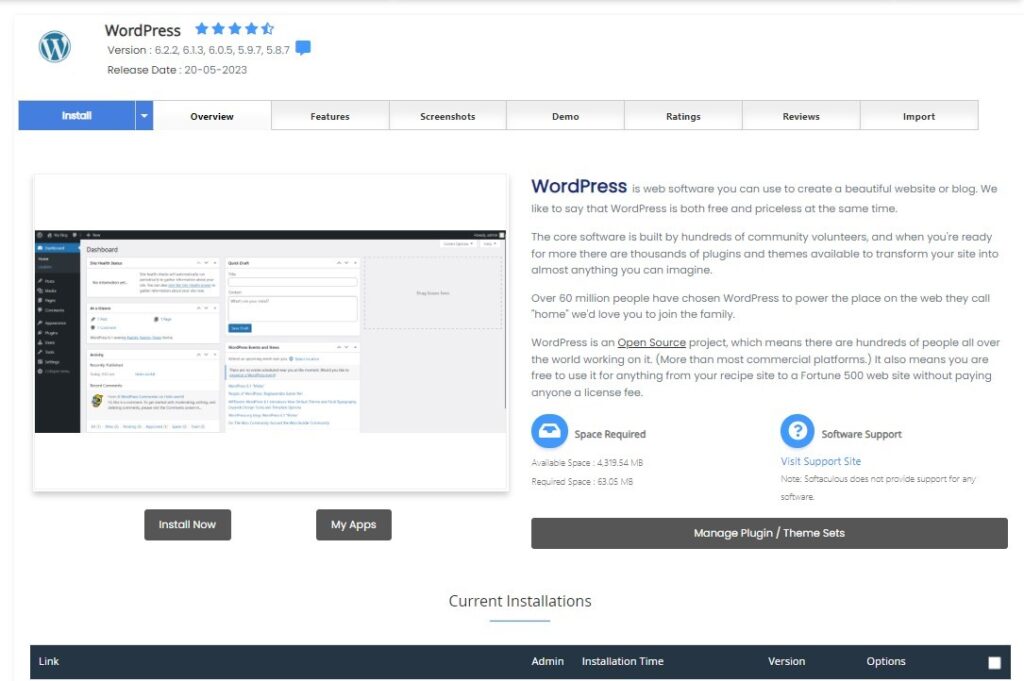
- In the Softaculous dashboard, you can either type “WordPress” in the search bar or find it under the “Blogs” or “CMS” category.
- Click on WordPress to open its overview page.
Step 3: Installation Procedure
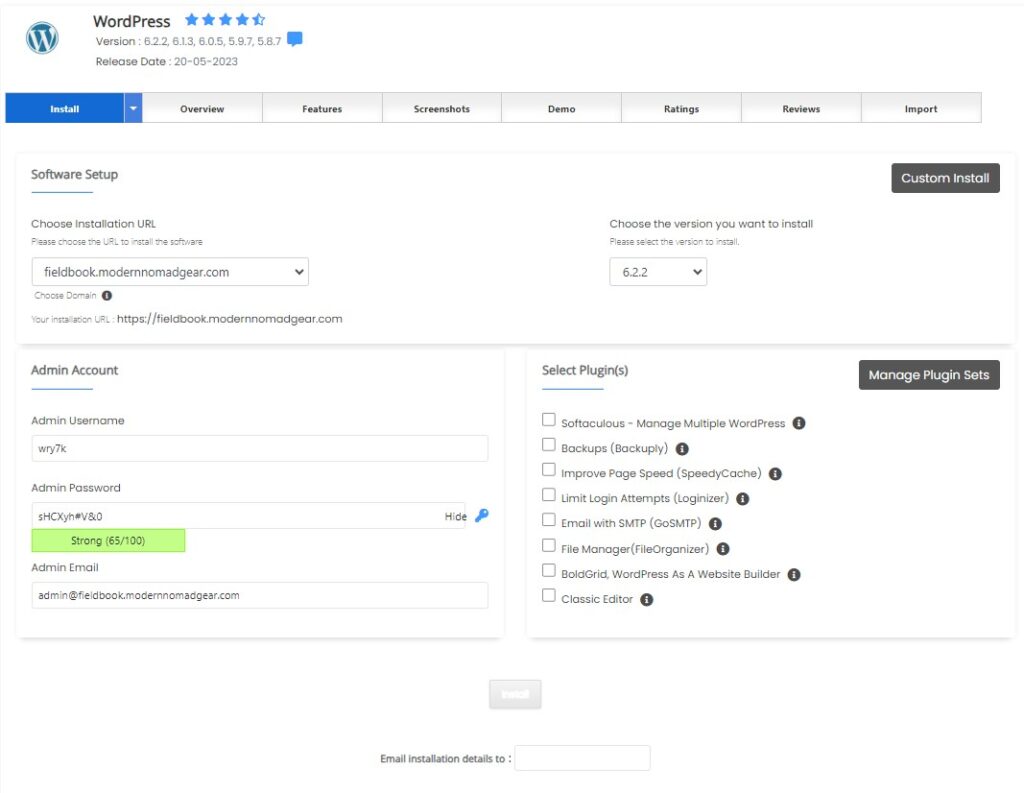
- Click on the ‘Install Now’ button.
- Choose the protocol (http or https). If your site has SSL, you can opt for the ‘https’ protocol.
- Select the domain or subdomain where you want WordPress installed.
- Decide whether to install WordPress in a directory or the root. If you want it on the main domain (e.g.,
example.com), leave the “In Directory” field blank. - Fill out site settings such as site name and description.
- Create admin account details – username, password, and admin email. Ensure you pick a strong password!
- Choose your preferred language.
- Optionally, select plugins/themes to install alongside WordPress.
- Hit the ‘Install’ button at the bottom.
Step 4: Post-Installation Steps
- Once installed, Softaculous will give you a confirmation along with links to your new WordPress site and the admin login page.
- Log into your WordPress dashboard using the admin credentials you set during installation.
- From here, you can begin customizing your site, adding content, and installing additional themes or plugins as desired.
Tips for Using WordPress:
- Security: Install security plugins like Wordfence or Sucuri to protect your site.
- Backup: Ensure you backup your WordPress site regularly. There are plugins like UpdraftPlus that can help.
- Updates: Always update WordPress core, plugins, and themes to their latest versions for improved functionality and security.
Conclusion:
Installing WordPress on Dark Horse Virtue Digital Footprint Hosting via Softaculous streamlines the process, eliminating the need for manual downloads or database configurations. With just a few clicks, you can have a powerful and flexible CMS ready to shape as per your vision.