What is PrestaShop?
PrestaShop is a free, open-source e-commerce solution that allows businesses to create and run their online stores. With its modular structure, users can customize and scale their store with over 3,000 templates and 5,000+ modules. Whether you’re a startup or an established business, PrestaShop provides a versatile platform for e-commerce success.
Advantages of Using PrestaShop:
- Customizability: With a vast marketplace of themes and modules, PrestaShop can be tailored to fit unique business needs.
- Scalability: Suitable for both small online stores and large e-commerce operations.
- Internationalization: Supports multiple languages, currencies, and tax rules.
- SEO-Friendly: Built-in SEO features to boost store visibility in search engines.
Installing PrestaShop Using Softaculous on Dark Horse Virtue Digital Footprint Hosting:
Step 1: Access Softaculous
- Log in to your Dark Horse Virtue Digital Footprint Hosting account.
- Navigate to the ‘Software’ section or directly to ‘Softaculous Apps Installer‘ srolling menu in cPanel.
- Click on the Softaculous icon.
Step 2: Locate PrestaShop
- Use the search function in Softaculous to type “PrestaShop” or find it under the “E-commerce” category.
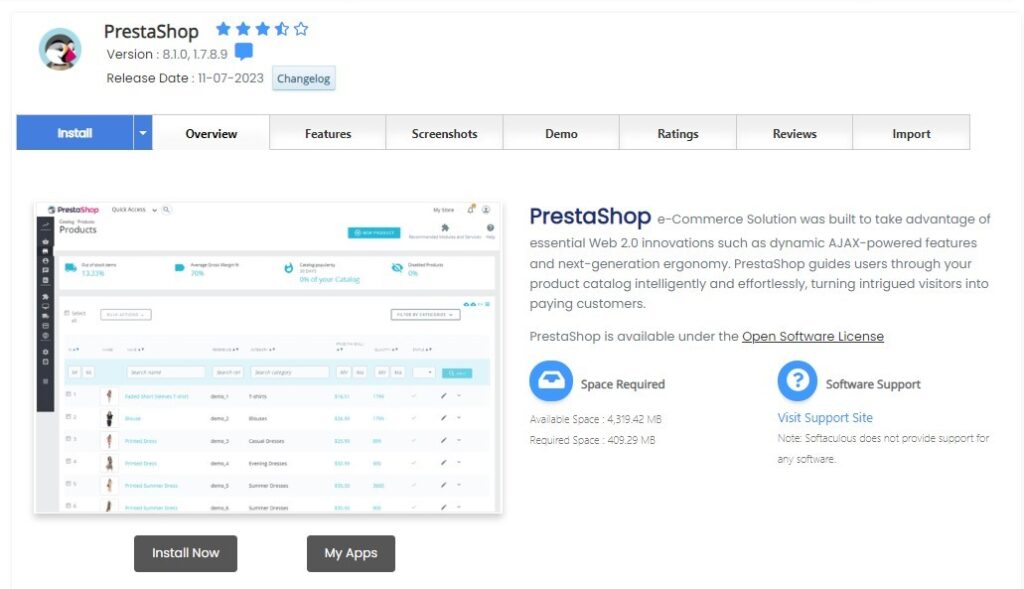
- Click on PrestaShop to view its overview page.
Step 3: Start the Installation

- Click on the ‘Install Now’ button.
- Choose your protocol (http or https). If you’ve got SSL, ‘https’ is recommended.
- Pick the domain or subdomain for PrestaShop installation.
- Decide on the directory. For main domain installations (e.g.,
shop.example.com), the “In Directory” field should be left blank. - Configure your store settings: store name, admin account details (ensure a strong password), and other relevant details.
- Click the ‘Install’ button at the end.
Step 4: After Installation
- Upon successful installation, Softaculous will provide a confirmation with links to your new PrestaShop store and its administrative area.
- Log into the PrestaShop admin panel using the credentials set during installation. From here, you can customize your store, add products, and configure payment methods.
Tips for Using PrestaShop:
- Extensions and Themes: Dive into the PrestaShop marketplace for a range of extensions and themes to enhance your store.
- Backup: Regular backups of your PrestaShop store are essential to prevent data loss.
- Security: Implement security best practices, such as using SSL, secure login credentials, and trustworthy extensions.
- Stay Updated: Ensure your PrestaShop version, themes, and modules are always up-to-date for security and feature enhancements.
Conclusion:
With Softaculous on Dark Horse Virtue Digital Footprint Hosting, setting up PrestaShop becomes straightforward. As a versatile e-commerce platform, PrestaShop provides businesses of all sizes with the tools they need to thrive in the competitive online marketplace.